Wallet safety summary
Use exact transfer amounts and references when topping up through generated bank transfer details.
What wallet powers
Support plans, Funds, Susu contributions, return schedules, holds, and withdrawals.
Trust impact
Completed payments and missed commitments can affect platform trust history.
Overview
Your Garder wallet holds funds for top-ups, approved support, returns, support offers, Funds, Susu contributions, and withdrawals. The recommended way to top up is through bank transfer via Flutterwave, which generates a temporary account number for each transaction.
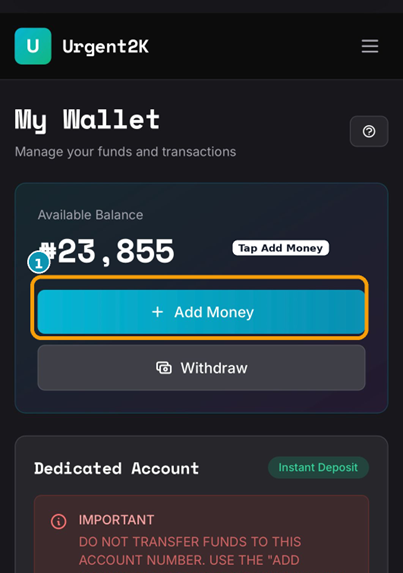
1 Open your Wallet and tap Add Money
Navigate to your wallet from the dashboard. Tap the blue + Add Money button at the top of the wallet card. Do not use the dedicated account number shown lower on the screen — that is for a different purpose.
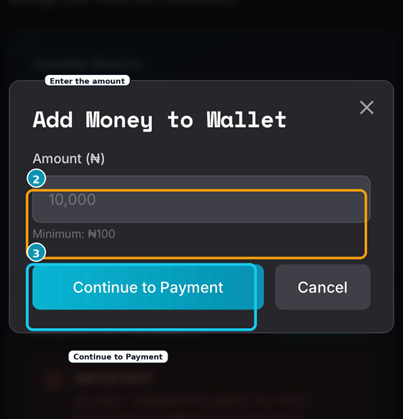
2 Enter the amount
An Add Money to Wallet modal appears. Type the amount you want to deposit. The minimum top-up is ₦100. Once you've entered the amount, tap Continue to Payment.
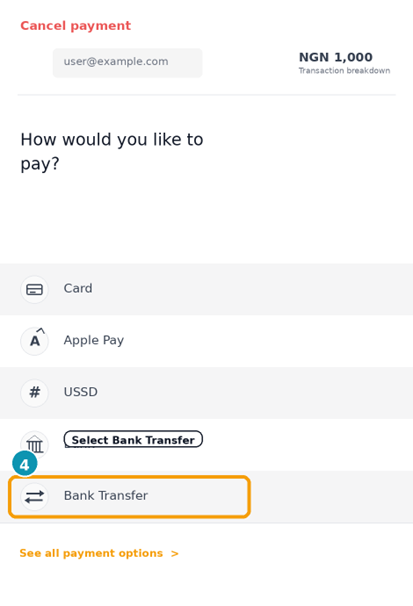
3 Select Bank Transfer
The Flutterwave payment screen opens. Choose Bank Transfer from the list of payment methods. If the page opens on the Card screen first, tap Change payment method and then select Bank Transfer.
4 Copy the transfer details and complete the payment
A temporary bank account is generated specifically for this transaction. Copy the exact amount and account number shown, then switch to your banking app and complete the transfer before the timer expires.
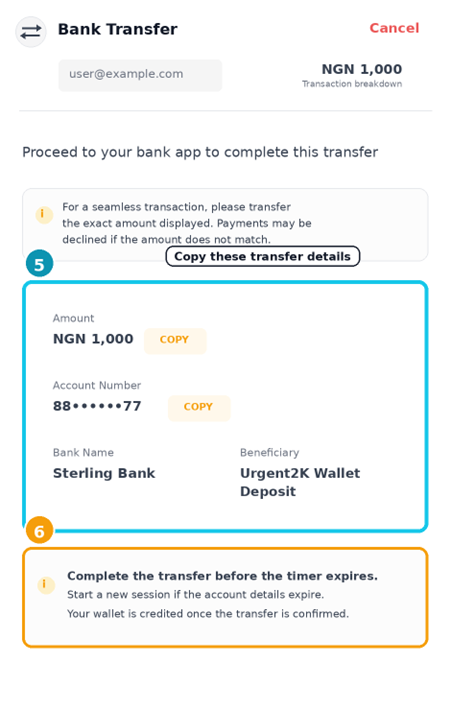
Complete before the timer expires
The temporary account number is only valid for a short window. If it expires before you transfer, go back and start a new payment session — a fresh account will be generated.
Wallet credited automatically
Once your bank confirms the transfer, your Garder wallet balance updates automatically. You don't need to do anything else.
Topping Up From Abroad (Diaspora)
Based outside Nigeria? You can skip the bank transfer flow entirely and top up directly with a GBP or USD card. Your card is charged in your local currency, and the converted Naira amount lands straight in your existing wallet — no separate foreign-currency balance to manage.
Switch to "Paying from abroad"
In the Add Money modal, tap the Paying from abroad tab next to the default Naira tab, then choose GBP or USD and enter an amount.
See your rate before you pay
As you type, Garder shows a live estimate of what you'll receive in Naira. That rate is locked in the moment you continue to checkout — it won't move against you while your payment is processing, even if the market rate shifts afterward.
Confirm your card and pay
Tick the box confirming your card was issued outside Nigeria, then continue to Flutterwave's secure checkout and complete payment with your card as normal.
Wallet credited in Naira
Once Flutterwave confirms your card payment, your wallet is credited with the exact Naira amount you were shown before paying — same wallet, same balance, no separate currency to track.
Holding a USD or GBP Wallet
Different from "Paying from abroad" above — this gives you a genuine USD or GBP balance that sits alongside your Naira wallet, with no conversion. Whatever currency you fund it with is the currency it's held and spent in.
Activate first — one time per currency
The first time you fund a currency, you'll be asked for the address on your card statement (line 1, city, county/state, and postal/ZIP code) instead of an amount field. This is a one-time step — after that, the funding form appears directly.
Funded in the same currency — no conversion
Unlike "Paying from abroad" (which converts to Naira), this charges your card and credits your wallet in the same currency — fund with $50 and your USD balance goes up by exactly $50.
Confirm and pay
Tick the box confirming your card was issued outside Nigeria, then complete Flutterwave's secure checkout as normal.
Withdrawing to a Bank Account
If you hold a USD wallet balance, you can withdraw it straight to a US bank account. If you hold a GBP wallet balance, you can withdraw it straight to a UK bank account. No conversion happens either way — a $100 withdrawal sends $100, a £100 withdrawal sends £100.
Enter your bank details
From your USD or GBP wallet, choose Withdraw. For a US account, search for your bank from the list or enter your routing number by hand if it isn't listed. For a UK account, enter your bank name, sort code, and account number directly — there's no searchable bank list for UK accounts yet, just the manual fields.
Enter an amount and confirm
Your wallet balance is debited immediately and the transfer is sent to Flutterwave for processing. You'll see the withdrawal as pending until it's confirmed.
Transfer Details Reference
Here's what you'll see on the transfer details screen and what each field means:
| Field | What it means |
|---|---|
| Bank Name | Sterling Bank — this is where you send the transfer |
| Beneficiary | Garder Wallet Deposit — confirms it's the right account |
| Account Number | Generated fresh for this transaction — copy it exactly |
| Amount | Transfer this exact amount — no rounding, no approximation |
| Expiry | Complete the transfer before this timer hits zero |
Important Notes
Do not use the dedicated account number
The dedicated account shown on your wallet page is separate and not for manual top-ups via this flow. Always start from Add Money.
Transfer the exact amount shown
Flutterwave matches transactions by exact amount. Sending ₦1,001 when ₦1,000 was requested can cause the wallet credit to fail or be delayed.
Expired details? Start a new session
If the timer expires before you complete the transfer, simply go back and tap Add Money again. A new temporary account number will be generated for a fresh session.
Transferred but wallet not credited?
Give it a few minutes — bank confirmations can take up to 5 minutes. If your balance still hasn't updated after 10 minutes, use the Help option inside the app and include your transfer reference number.
FAQ
What is the minimum top-up amount?
₦100. There is no maximum, but very large transfers may take longer to confirm depending on your bank.
How long does it take for my wallet to be credited?
Usually within 1–3 minutes of your bank confirming the transfer. During busy banking hours it can take up to 5 minutes. If it hasn't updated after 10 minutes, contact support via the Help option in the app.
I sent the wrong amount — what happens?
If the amount doesn't match what was generated for that session, Flutterwave may not credit the transaction automatically. Contact support immediately with your bank reference number and the amount you sent.
Can I save the account number and reuse it?
No. Each session generates a unique temporary account number. Sending to an old account number from a previous session will not credit your wallet.
The page expired before I could transfer. Did I lose money?
No. If you didn't complete the bank transfer, no money left your account. Simply start a new Add Money session and generate a fresh set of transfer details.
Can I top up using card or USSD instead?
The Flutterwave payment screen also offers Card, USSD, and Apple Pay options. Bank Transfer is recommended because it has no card processing fees and works reliably for Nigerian bank accounts.
I'm outside Nigeria — do I need to use bank transfer?
No. Use the "Paying from abroad" tab in Add Money instead. It lets you pay directly with a GBP or USD card and credits your wallet in Naira at the rate shown before you pay — no Nigerian bank account needed.
Why was my foreign card top-up flagged for review?
If we can't confirm your card was issued outside Nigeria, or the payment provider reports it as a Nigerian-issued card, we flag the transaction for manual review as a precaution. Your wallet is still credited — this just means our team double-checks the transaction afterward.
Is there a limit on how much I can top up from abroad?
Yes — up to $5,000 or £3,700 per transaction. That's Flutterwave's own card-payment limit, not something Garder imposes. If you need to move more than that, just split it across a couple of top-ups.